
Exporting patient data
Exporting your patients' list, summary of consults, and patient invoices
To export your patients' list, go to the My patients page, and then click on Download CSV.
You can view and export a summary of your consults by clicking on the Settings tab in the top nav bar, and then on Summary of consults under the Stats, reports & exports section.
Select the time frame you would like a summary of by setting a start date and end date, then clicking Filter. Now, click the Download CSV button to generate a summary document of your consults that will automatically be downloaded to your computer.

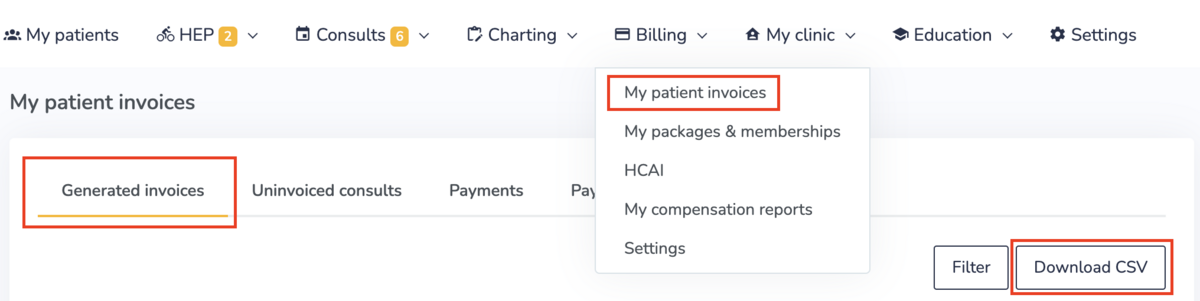
To export a list of your patient invoices, go to Billing > My patient invoices, and then clicking on Download CSV.
Exporting charts and questionnaires
To export your patient's data, visit the patient profile and then click on Other actions > Export data.

Specify the start date and the end date of the data you want to export and then click Next:

Then choose which items you would like to export. These can be:
- Any patient properties on the patient profile;
- Consults;
- Charts;
- Programs;
- Questionnaires;
- Shared education.

This is what your print-friendly export data can look like. You will see your clinic information and logo along with the data you chose to export.
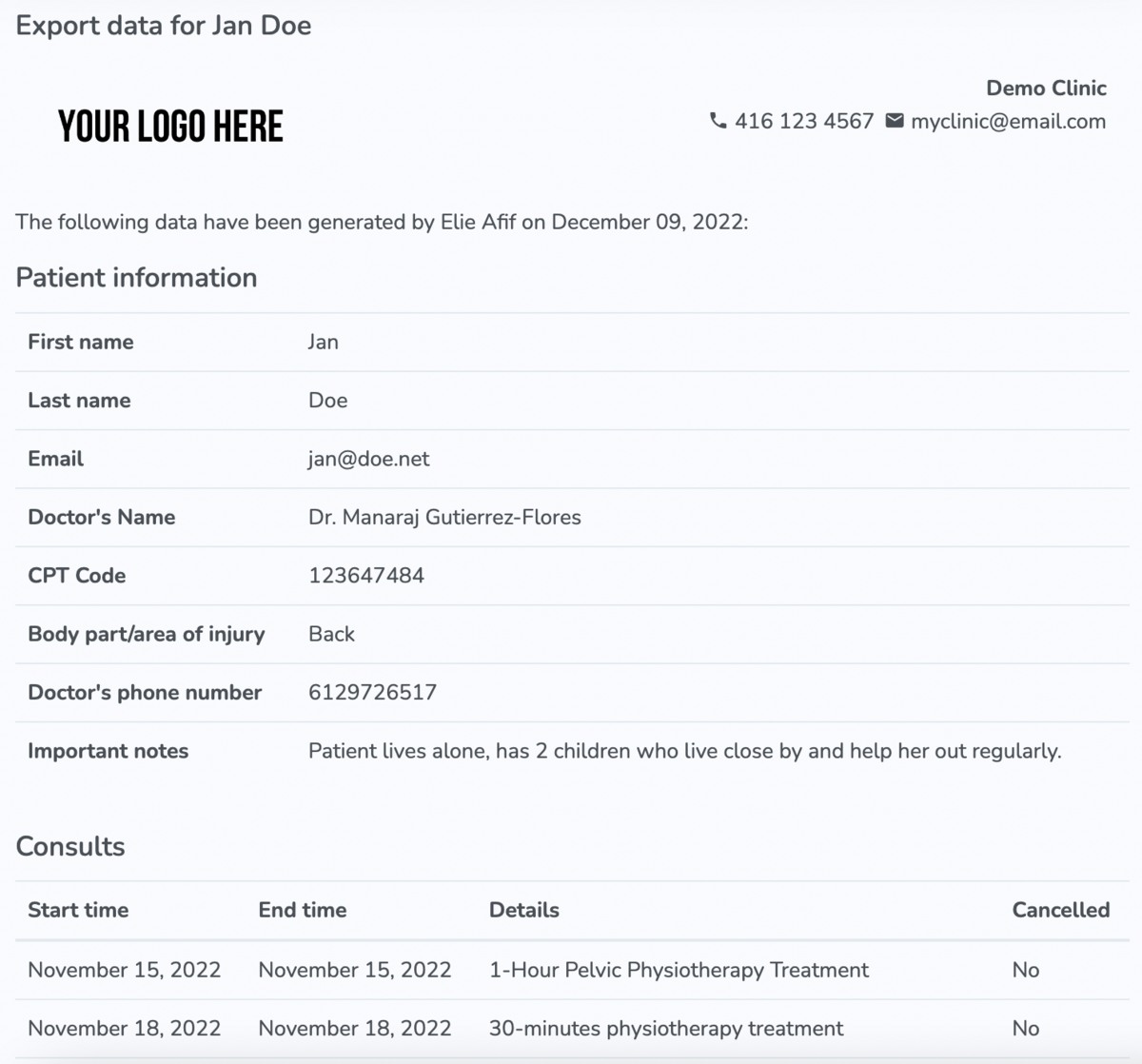
To "print" your document as a PDF, press Ctrl (Command) + P. Then select Save as PDF in the browser print settings. For instance, this is how it looks in the Chrome browser:

Here is an example of what the first page of an exported PDF can look like. Clinic information and logo would be specific to your practice.
